

@powersync/diagnostics/vite plugin adds a PowerSync entry to the Vite DevTools dock. It works with any web app that uses Vite and @powersync/web, such as React, Vue, and Svelte apps.
Requirements
@powersync/web2.5.0 or later.- Vite 7, or Vite 8.3 or later.
Set Up DevTools
1
Install the packages
@vitejs/devtools, because its devtools option loads Vite DevTools from this package.2
Add the plugin
Enable Vite DevTools and add the PowerSync plugin in
vite.config.ts.- Vite 8
- Vite 7
apply: 'serve' limits Vite DevTools to the dev server. Without it, Vite DevTools also runs during vite build. You can also use devtools: true.3
Optional: Enable diagnostics when you connect
To show the total number of operations for each bucket in the Buckets tab, pass
diagnostics: true when you connect.4
Start the dev server and trust your browser
Start the dev server and open your app. The first time, Vite DevTools asks you to trust the browser:
- Click the Vite DevTools dock entry.
- Enter the six-digit code from the terminal in the browser, or open the link that the terminal prints.
5
Open PowerSync DevTools
Click the PowerSync entry in the dock at the bottom of the page.
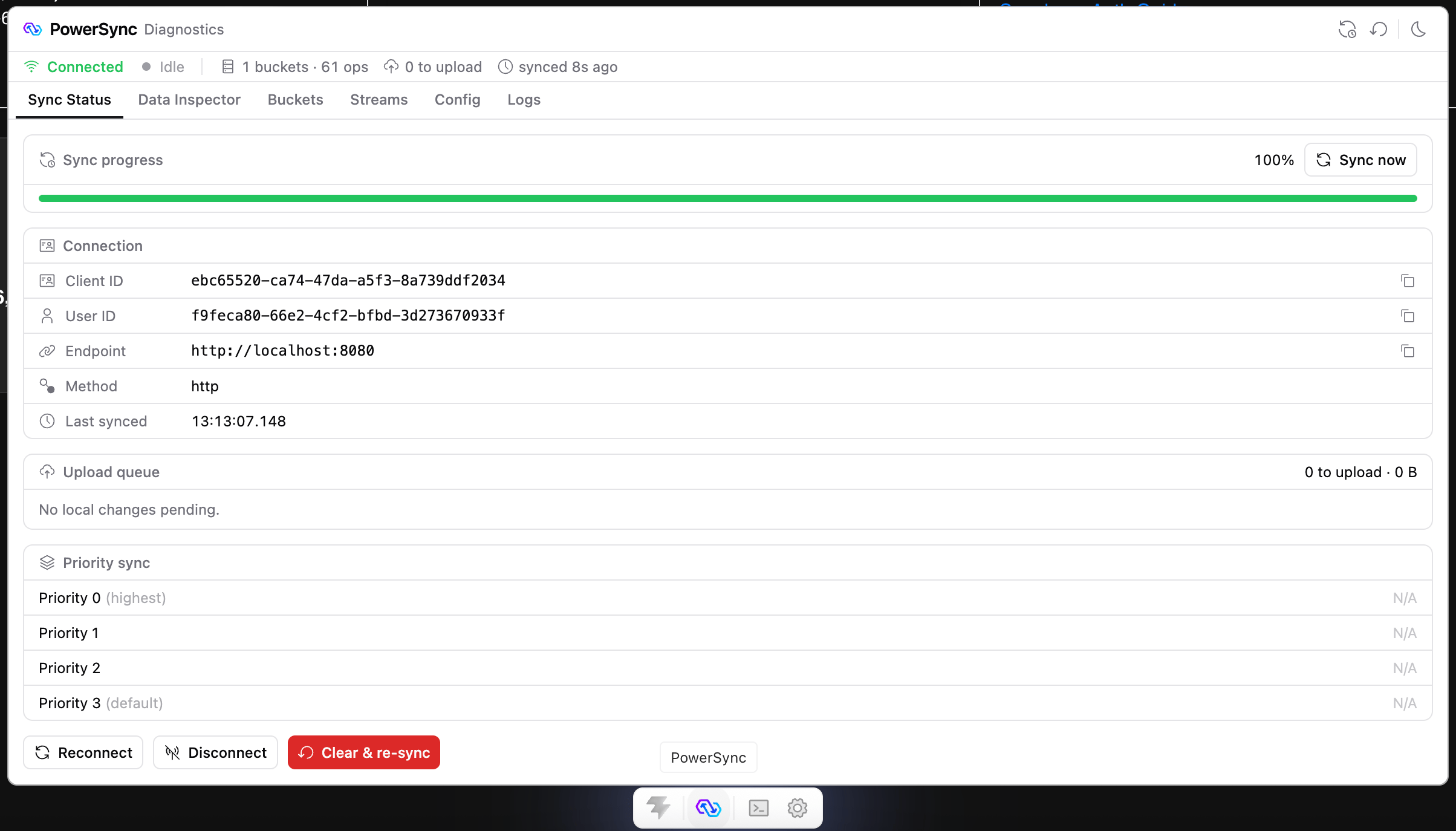
The PowerSync entry in the Vite DevTools dock.
Plugin Options
Multiple Tabs and Databases
If your app is open in more than one browser tab, DevTools attaches the database from each tab. To switch between them, use the database list in the DevTools header. The list appears only when more than one database is attached. If one page opens more than one PowerSync database, DevTools shows only the first one.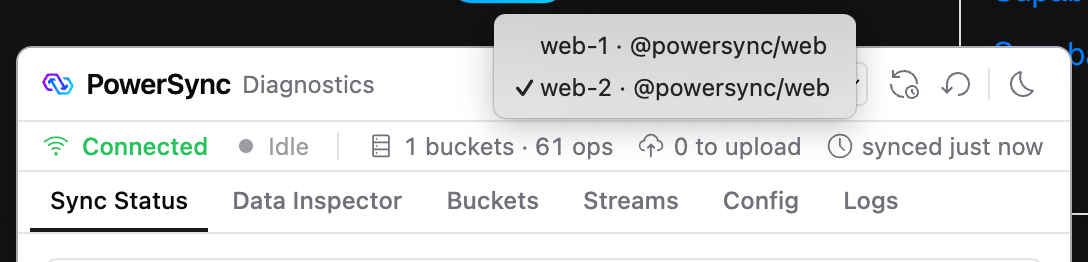
The database list in the DevTools header, with two app tabs attached.
Troubleshooting
The dock has no PowerSync entry. Check that Vite DevTools is enabled: thedevtools option on Vite 8, or the DevTools() plugin on Vite 7. Then restart the dev server.
DevTools shows “No PowerSync database attached”. DevTools gets the database from an open app tab. Open your app in a browser that Vite DevTools trusts. DevTools updates when your app opens its database. If the app tab was in the background for a while, reload the app tab to attach the database again.