PowerSync DevTools has the same tabs in Vite, Nuxt, and Node.js. To set it up, start with the overview.

Header and Status Bar

DevTools header with the Sync now and Clear and re-sync icon buttons, and the status bar below it

The DevTools header and status bar.

The status bar stays visible on every tab and summarizes the sync state, including the latest error. The header has these controls:
Clear & re-sync also deletes the local changes in the upload queue. Changes that did not upload, for example writes made offline, are lost.

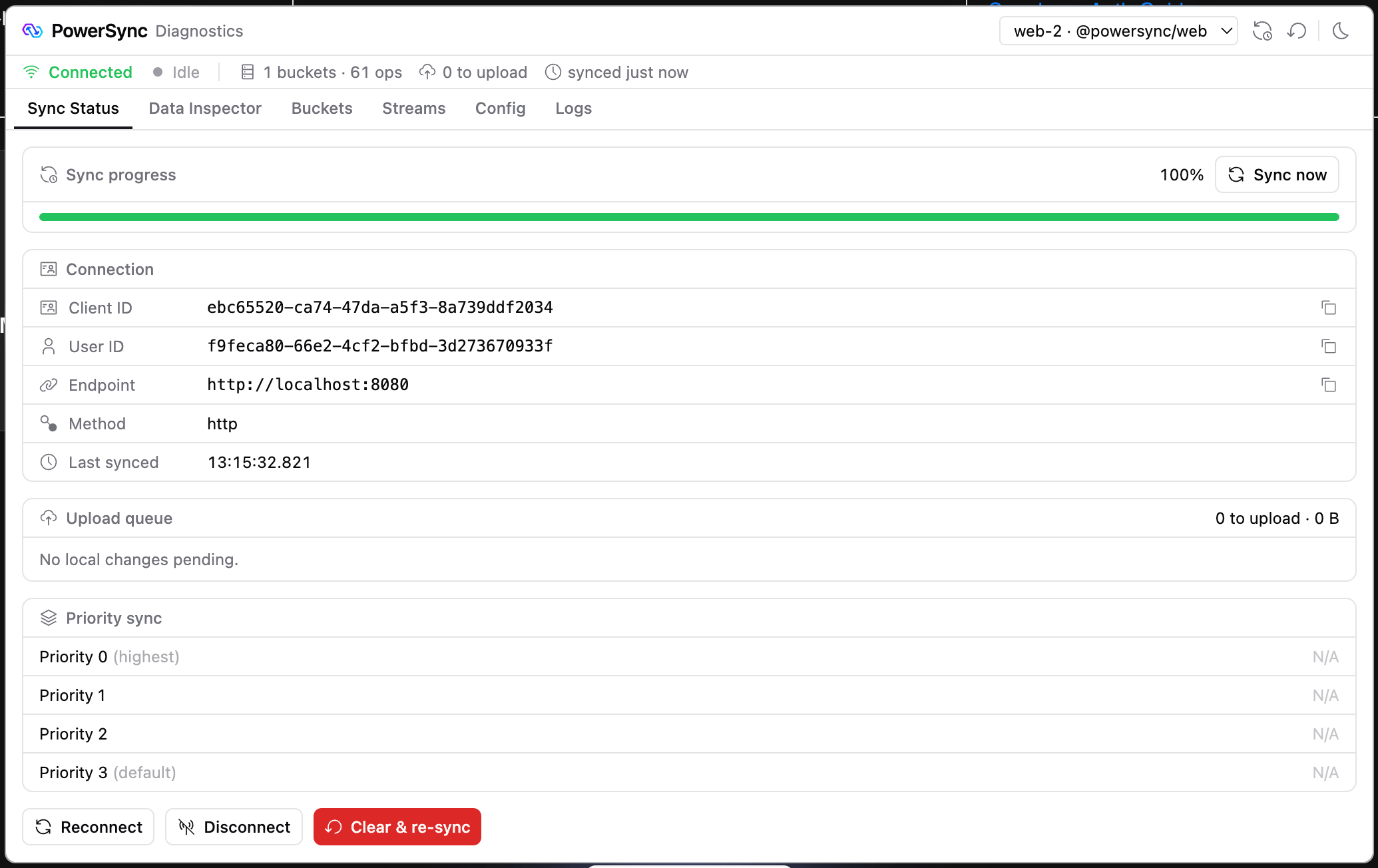
Sync Status

Sync Status tab with connection details, download progress, and the upload queue

The Sync Status tab.

Use the Sync Status tab to check the connection, the download progress for each priority, and the local changes that are still waiting to upload. The tab also shows download and upload errors. Use Disconnect and Reconnect to test how your app behaves offline and when it connects again.

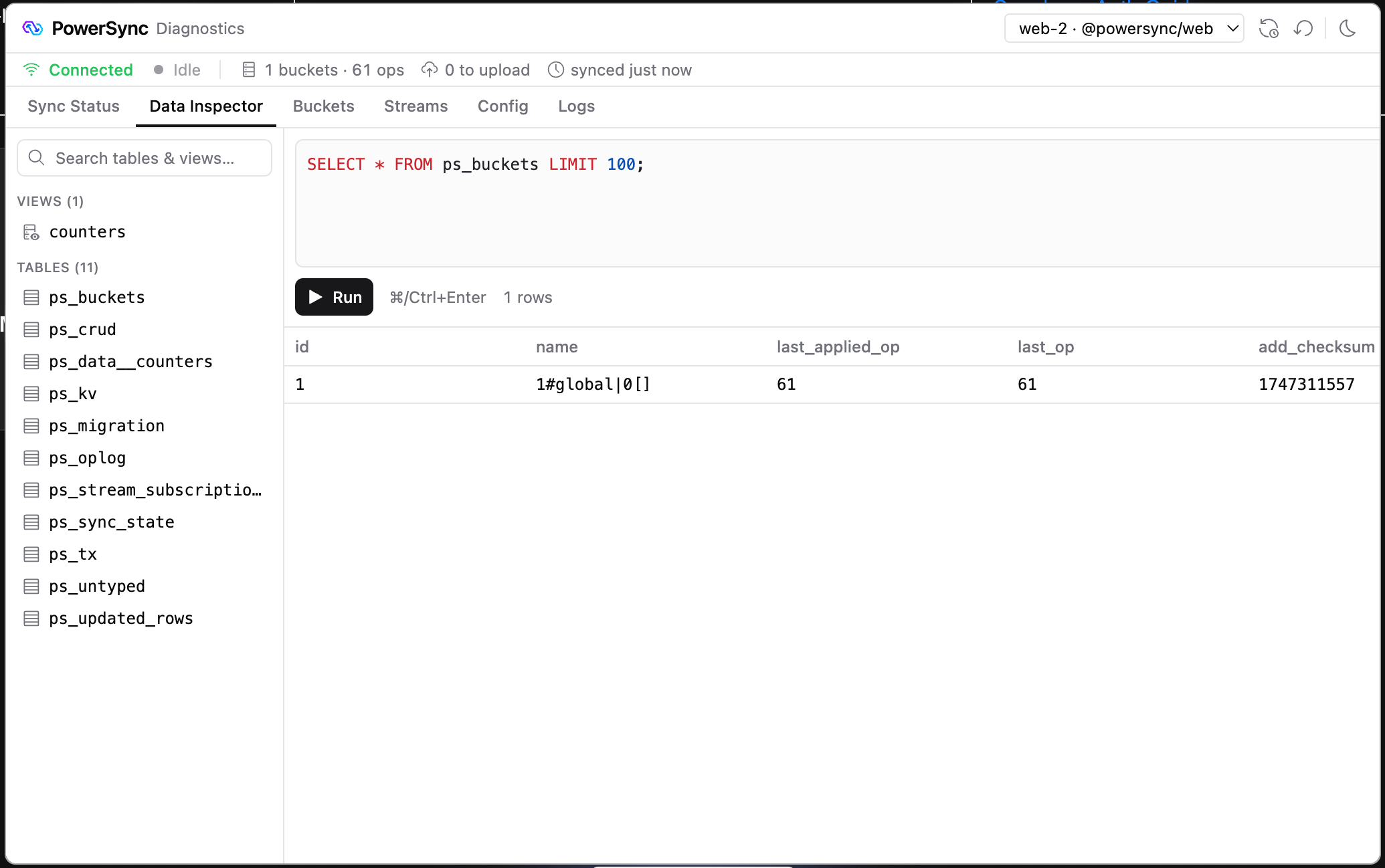
Data Inspector

Data Inspector tab with the table list and a SQL query result

The Data Inspector tab with a SQL query.

Use the Data Inspector tab to browse your tables and to run SQL against the local SQLite database in your app. To run a query, press ⌘+Enter or Ctrl+Enter. Queries do not reach your source database. The tables in your schema are SQLite views. The client’s sync state is in internal ps_* tables, such as ps_buckets, ps_oplog, and ps_crud.
Writes in the SQL editor change your local data. A write to one of your schema tables goes into the upload queue, and your connector’s uploadData() sends it to your backend, like a write from your app.

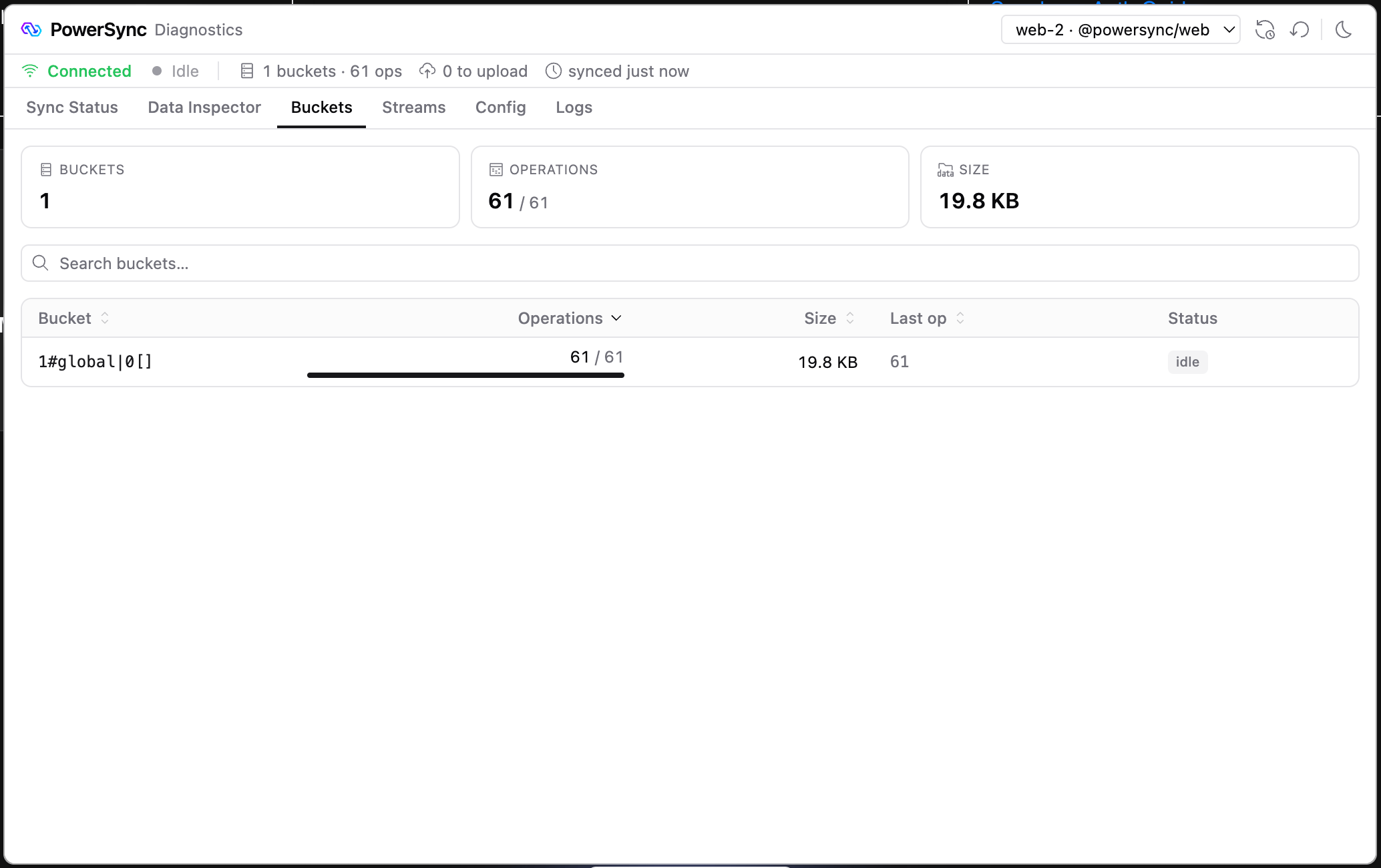
Buckets

Buckets tab with a list of buckets, their operations, and their size

The Buckets tab.

The Buckets tab lists the buckets on the client, with the downloaded operations and size of each. Select a bucket to see its operations and rows. To also see the total number of operations for each bucket, connect with diagnostics: true:

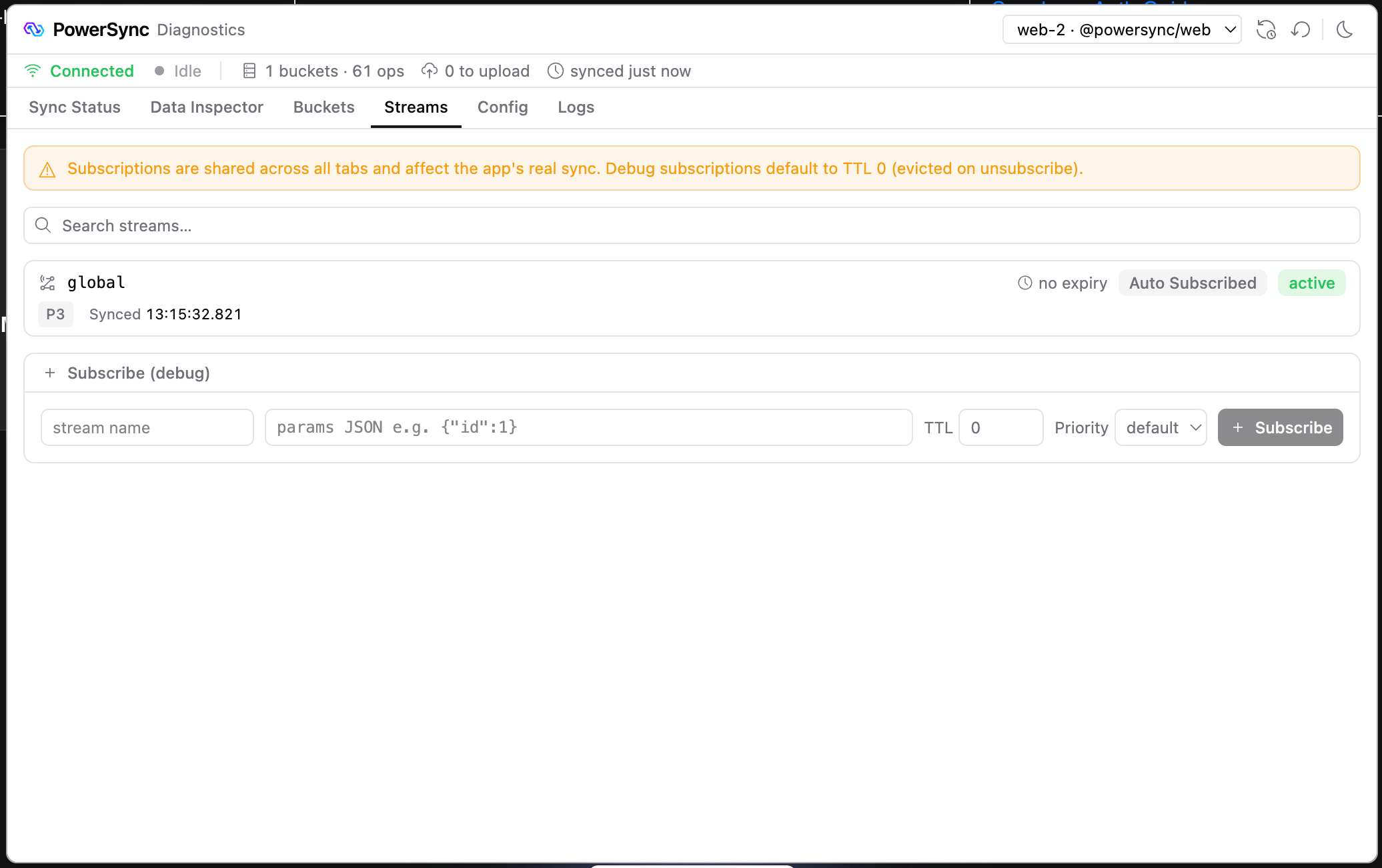
Streams

Streams tab with Sync Stream subscriptions and the subscribe form

The Streams tab.

The Streams tab lists your Sync Stream subscriptions, including when each one expires. To test a stream, subscribe to it with the form. The form’s TTL defaults to 0, so the client removes the stream’s data soon after you unsubscribe. Read Sync Streams for more about TTL and priority.

Config

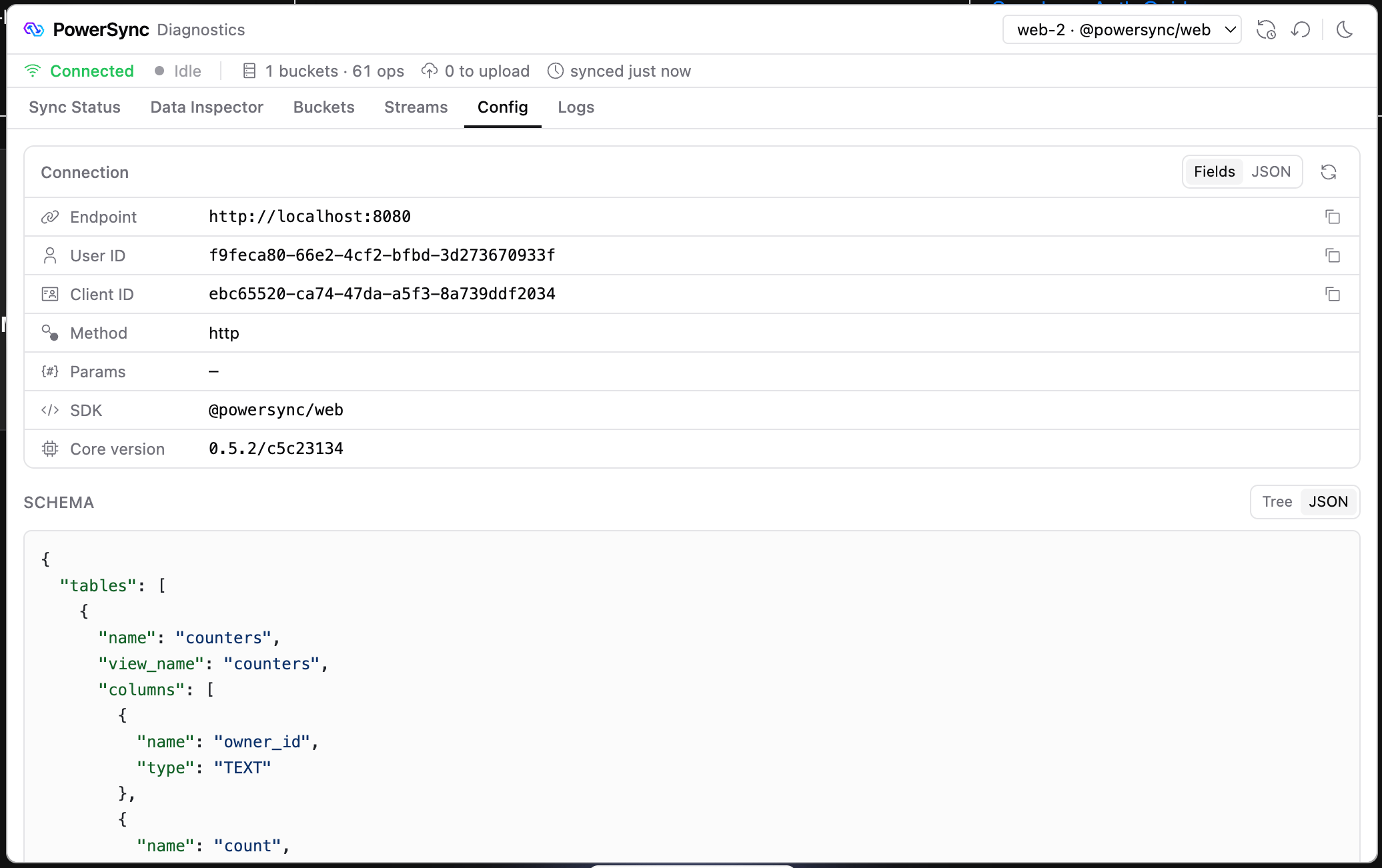
Config tab with connection details and the schema as JSON

The Config tab.

The Config tab shows the connection details, such as the endpoint, user ID, and connection parameters, and your client schema. The user ID comes from the sub claim of the JWT that your connector returns.

Logs
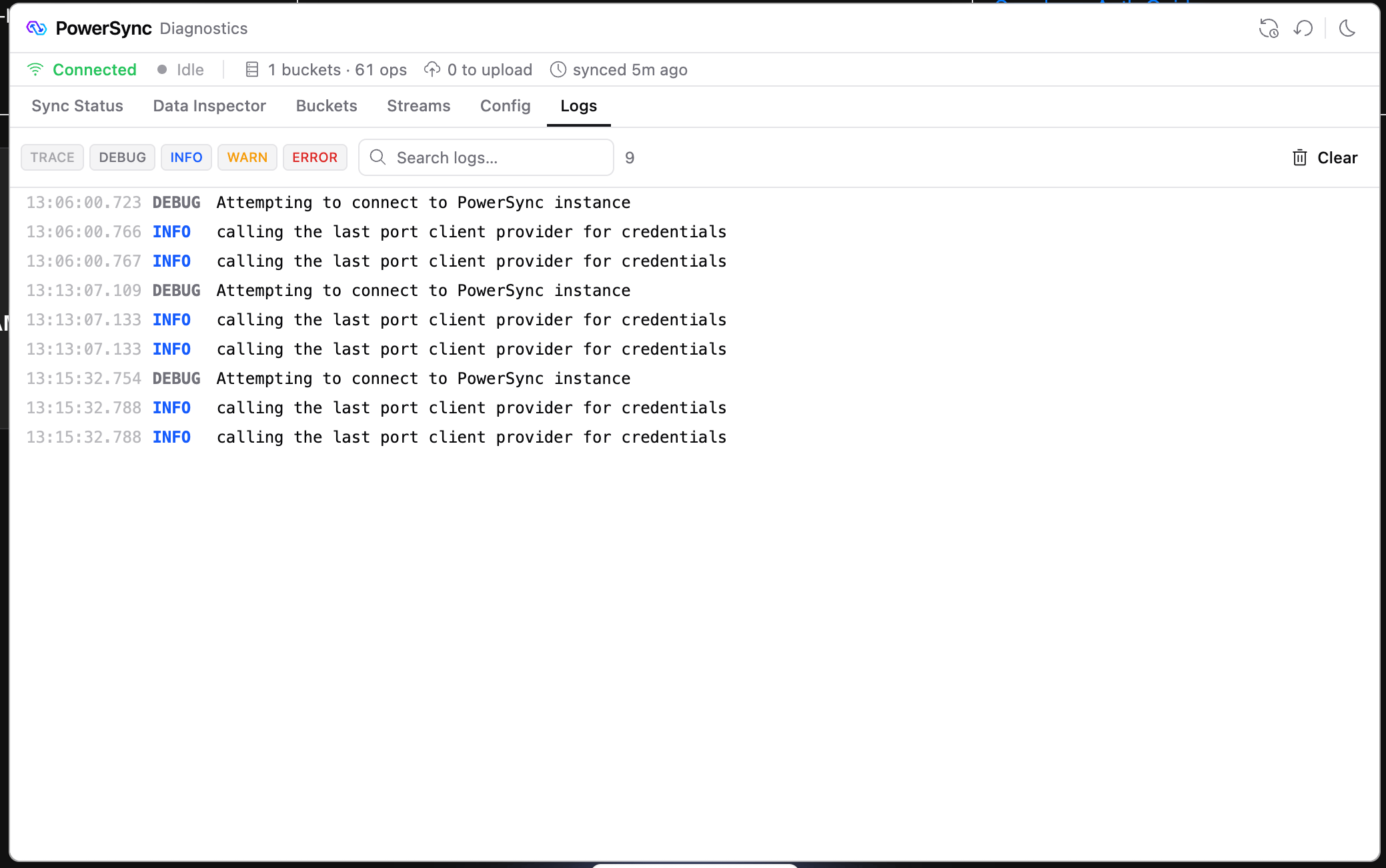
Logs tab with log records and the level filter

The Logs tab.

The Logs tab shows the PowerSync SDK’s log records. It collects records only after DevTools attaches to the database, so earlier records do not appear.