> ## Documentation Index
> Fetch the complete documentation index at: https://powersync-diagnostics-docs.mintlify.site/llms.txt
> Use this file to discover all available pages before exploring further.
# PowerSync DevTools for Nuxt
> Show PowerSync DevTools in Nuxt DevTools with the @powersync/nuxt module.
The `@powersync/nuxt` module includes PowerSync DevTools and adds it to [Nuxt DevTools](https://devtools.nuxt.com), so you do not need to install another package.
## Requirements
* `@powersync/nuxt` 1.0.0 or later.
* Nuxt DevTools 3 or 4.
If you are upgrading from `@powersync/nuxt` 0.x, follow the [Migration Guide](#migration-guide) first.
## Set Up DevTools
Set `useDiagnostics: true` in `nuxt.config.ts`.
```typescript theme={null}
export default defineNuxtConfig({
modules: ['@powersync/nuxt'],
powersync: {
useDiagnostics: true
},
vite: {
optimizeDeps: {
exclude: ['@powersync/web']
},
worker: {
format: 'es'
}
}
});
```
The module applies this option only during `nuxt dev`, so DevTools is not added to a production build.
To show the total number of operations for each bucket in the **Buckets** tab, pass `diagnostics: true` when you connect in your PowerSync plugin.
```typescript theme={null}
await db.connect(connector, { diagnostics: true });
```
Start `nuxt dev` and open Nuxt DevTools. The module detects your Nuxt DevTools version, and the remaining steps depend on it.
Nuxt 4 installs Nuxt DevTools 3 by default.
Select the **PowerSync** tab in Nuxt DevTools. You can also open DevTools directly at `http://localhost:3000/__powersync/`. Your app's route middleware, such as an auth guard, does not apply to this page.
The MCP tools need Nuxt DevTools 4.
Nuxt DevTools 4 is in beta. It runs on Vite DevTools and needs Nuxt 4.5 or later.
Because Nuxt 4 depends on Nuxt DevTools 3, you must install version 4 and override the version that Nuxt uses. For example, with pnpm, add this to `pnpm-workspace.yaml`:
```yaml theme={null}
overrides:
'@nuxt/devtools': 4.0.0-beta.2
```
Then open DevTools:
1. The first time, DevTools asks you to trust the browser. Enter the six-digit code from the terminal in the browser, or open the link that the terminal prints.
2. Click the **PowerSync** entry in the DevTools dock.
With Nuxt DevTools 4, coding agents can use the [MCP tools](/tools/devtools/mcp) at `http://localhost:3000/__devtools/__mcp`.
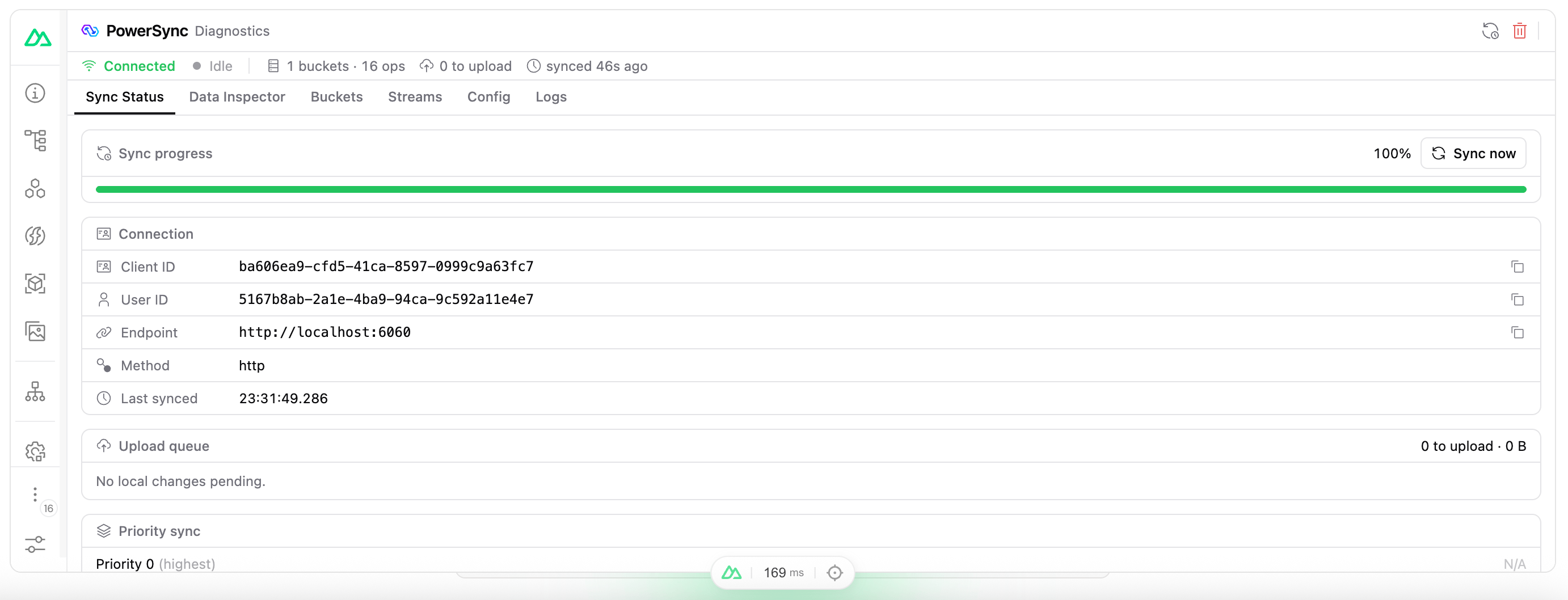 To see what each tab shows, read [Using DevTools](/tools/devtools/using-devtools).
## Troubleshooting
**Nuxt DevTools 4 shows "No PowerSync database attached" after the app tab was idle.** Reload the app tab to attach the database again.
## Migration Guide
`@powersync/nuxt` 1.0.0 replaces the PowerSync inspector with PowerSync DevTools. The `useDiagnostics` option keeps its name and now turns on DevTools, so you do not need to change it. To upgrade from 0.x, follow these steps.
`NuxtPowerSyncDatabase` is removed. Use `PowerSyncDatabase` from `@powersync/web`, and pass `diagnostics: true` when you connect.
```diff theme={null}
- import { NuxtPowerSyncDatabase } from '@powersync/nuxt';
+ import { PowerSyncDatabase } from '@powersync/web';
- const db = new NuxtPowerSyncDatabase({ database: { dbFilename: 'app.sqlite' }, schema: AppSchema });
+ const db = new PowerSyncDatabase({ database: { dbFilename: 'app.sqlite' }, schema: AppSchema });
- await db.connect(connector);
+ await db.connect(connector, { diagnostics: true });
```
`NuxtPowerSyncDatabase` set `enableMultiTabs: true` on every browser, but `PowerSyncDatabase` turns off multi-tab support on Safari, iOS, and Android by default. To keep the old behavior, set `enableMultiTabs: true` in the `database` options.
These exports are removed:
* `usePowerSyncInspector`
* `usePowerSyncInspectorDiagnostics`
* The types `UsePowerSyncInspectorDiagnosticsReturn` and `UsePowerSyncInspectorDiagnosticsTotals`
If you added `diagnosticsSchema` to your schema, remove it. DevTools no longer adds tables to your database.
The module no longer uses UnoCSS. If you added this setting to avoid a conflict with Tailwind CSS, remove it:
```diff theme={null}
export default defineNuxtConfig({
- unocss: {
- autoImport: false
- }
});
```
The `/__powersync-inspector` page is removed. Use the **PowerSync** tab in Nuxt DevTools. With Nuxt DevTools 3, you can also open `/__powersync/`.
To see what each tab shows, read [Using DevTools](/tools/devtools/using-devtools).
## Troubleshooting
**Nuxt DevTools 4 shows "No PowerSync database attached" after the app tab was idle.** Reload the app tab to attach the database again.
## Migration Guide
`@powersync/nuxt` 1.0.0 replaces the PowerSync inspector with PowerSync DevTools. The `useDiagnostics` option keeps its name and now turns on DevTools, so you do not need to change it. To upgrade from 0.x, follow these steps.
`NuxtPowerSyncDatabase` is removed. Use `PowerSyncDatabase` from `@powersync/web`, and pass `diagnostics: true` when you connect.
```diff theme={null}
- import { NuxtPowerSyncDatabase } from '@powersync/nuxt';
+ import { PowerSyncDatabase } from '@powersync/web';
- const db = new NuxtPowerSyncDatabase({ database: { dbFilename: 'app.sqlite' }, schema: AppSchema });
+ const db = new PowerSyncDatabase({ database: { dbFilename: 'app.sqlite' }, schema: AppSchema });
- await db.connect(connector);
+ await db.connect(connector, { diagnostics: true });
```
`NuxtPowerSyncDatabase` set `enableMultiTabs: true` on every browser, but `PowerSyncDatabase` turns off multi-tab support on Safari, iOS, and Android by default. To keep the old behavior, set `enableMultiTabs: true` in the `database` options.
These exports are removed:
* `usePowerSyncInspector`
* `usePowerSyncInspectorDiagnostics`
* The types `UsePowerSyncInspectorDiagnosticsReturn` and `UsePowerSyncInspectorDiagnosticsTotals`
If you added `diagnosticsSchema` to your schema, remove it. DevTools no longer adds tables to your database.
The module no longer uses UnoCSS. If you added this setting to avoid a conflict with Tailwind CSS, remove it:
```diff theme={null}
export default defineNuxtConfig({
- unocss: {
- autoImport: false
- }
});
```
The `/__powersync-inspector` page is removed. Use the **PowerSync** tab in Nuxt DevTools. With Nuxt DevTools 3, you can also open `/__powersync/`.